
Password Management
Password Change
The capability to change their password directly from Virtual Terminal console is limited to the Admin users only.
For password change select "Manage Users" from the menu and in "Personal Details" tab click on "Change password" button.
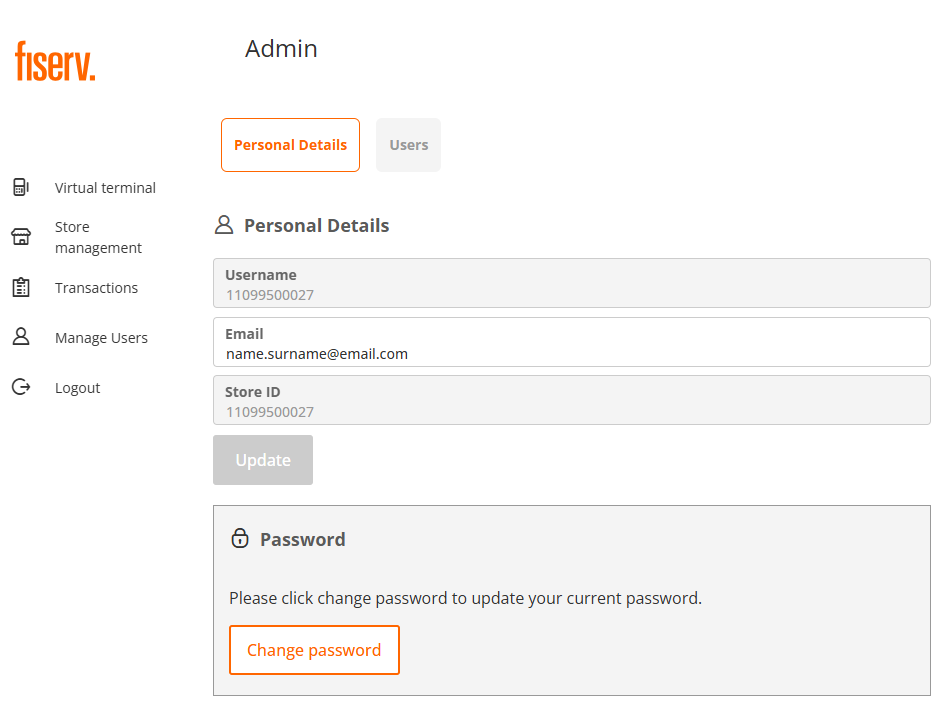
After clicking on "Change password" button, you will be presented with the option to setup a new password.
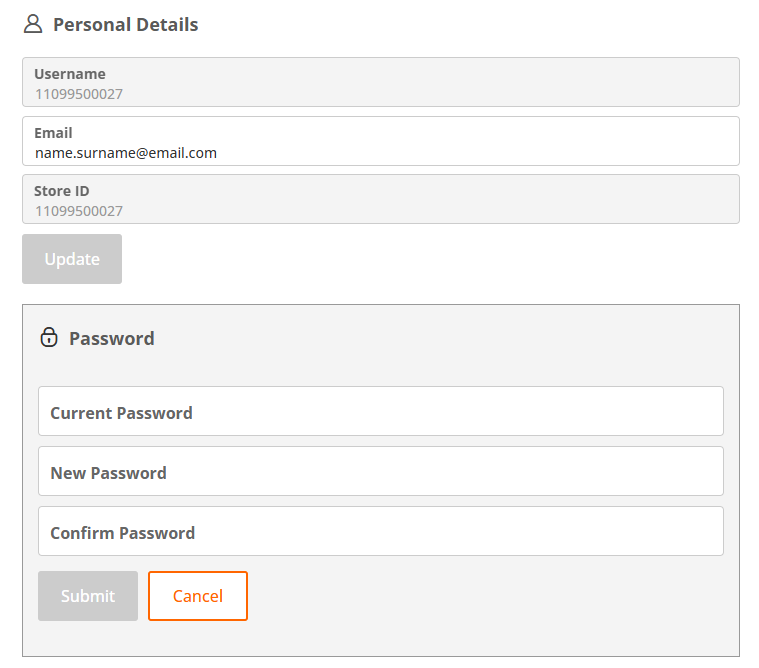
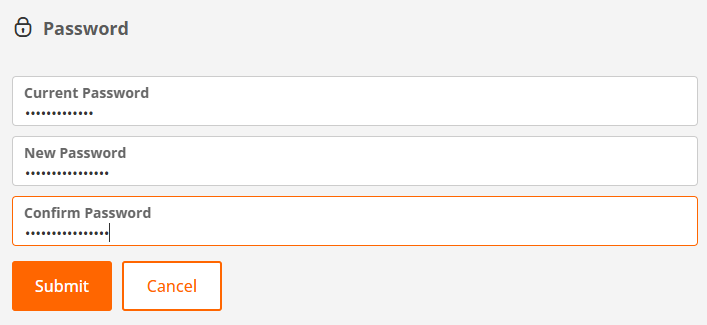
After you filled out all requested fields, confirm your new password with "Submit" button.
Password Reset
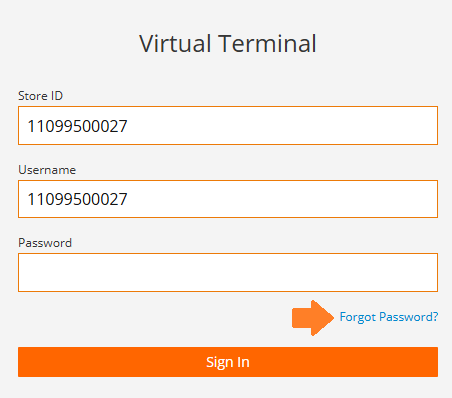
For cases when you require your password to be reset, use "Forgot Password?" link and follow the instruction on the screen.
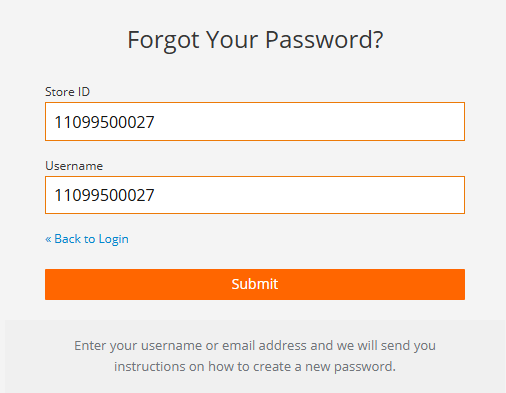
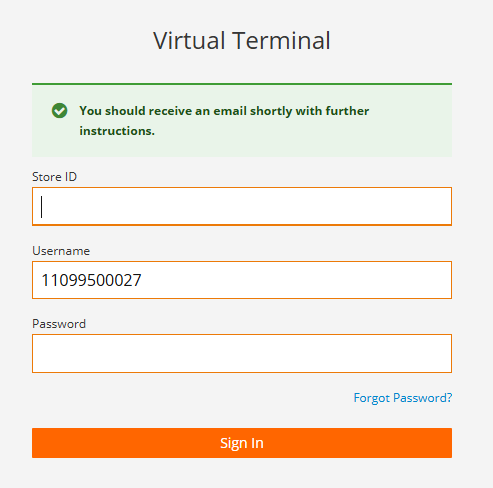
Your registered email inbox, including the spam or junk folder, should be checked. Instructions along with a secure link to reset your password are expected to be delivered within a few minutes.
Below represents an example of an email sent to your email address:
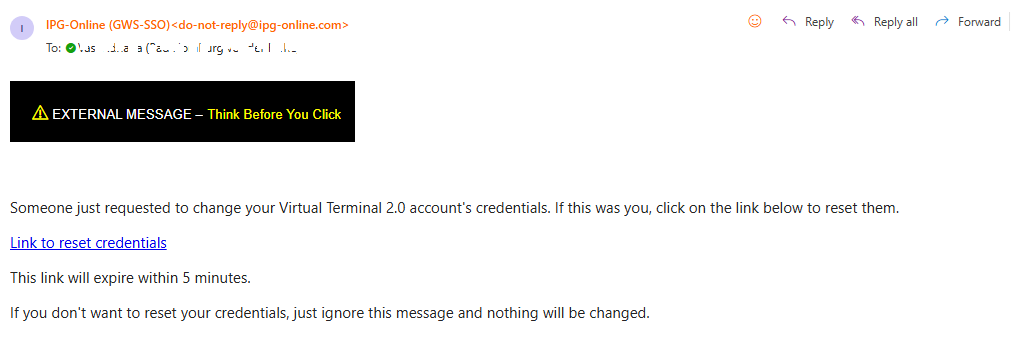
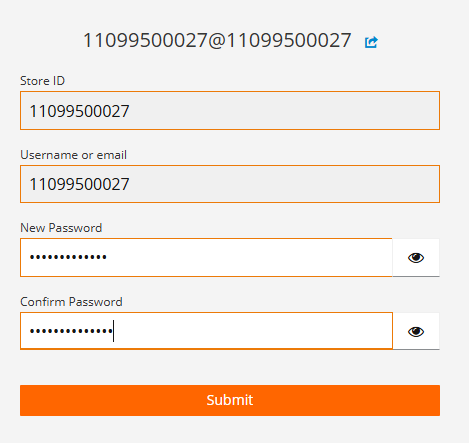
After clicking on the link to reset your credentials, you will be redirected back to the application offering to setup a new password. Confirm your new password with "Submit" button.
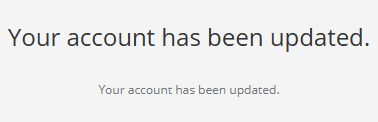
Multifactor Authentication (MFA) recovery
The MFA One-Time-Password (OTP) recovery flow allows you to reset your authenticator and complete the setup on a new device with minimal disruption.
Follow the instructions in case you lost access to your mobile device or need to authenticate using a new one by clicking on "Click here" link once you are redirected from the initial login screen.
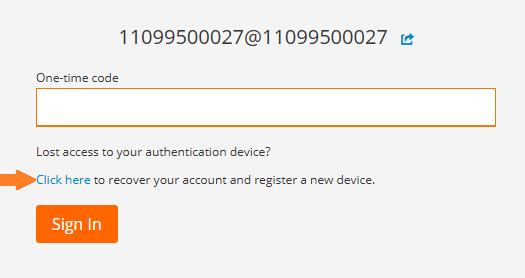
Confirm your choice by using "Send Reset Email" button.
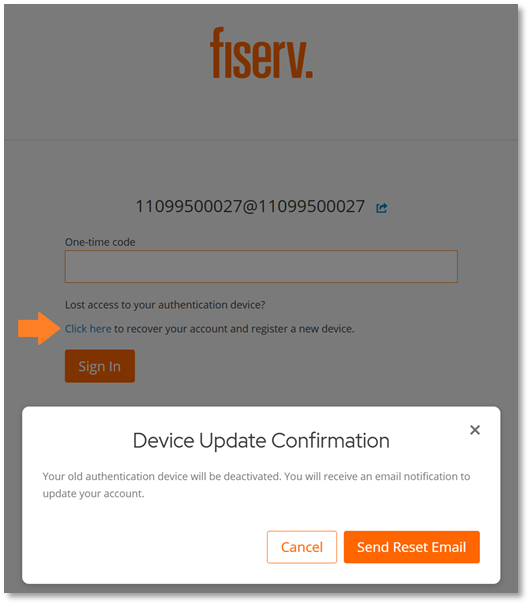
The message appears informing you about the successful email generation.
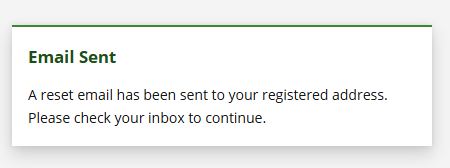
You will receive an email with a link redirecting you to the initial MFA setup screen. It is highly recommended to check also your spam folder, in case the email has not been delivered within a few minutes.

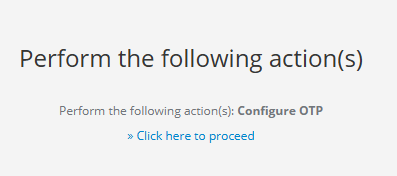
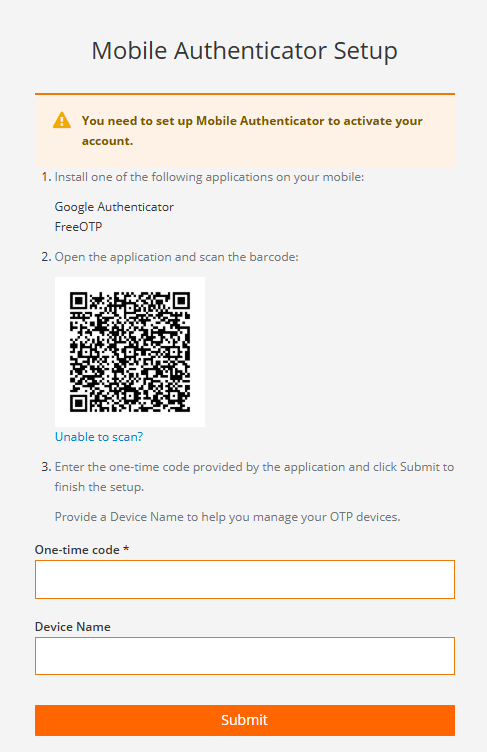
Scan the QR code in your preferred authenticator app and proceed as described here
Updated 8 months ago
