
PayPal Configuration
Pre-requisite
Your account must be enabled for PayPal (Checkout). Please reach out to your client representative.
Furthermore, you will need to have access to Virtual Terminal (VT) 2.0.
In order to allow our gateway to process PayPal transactions on your behalf, you will need to follow the below steps.
Please keep in mind that you can also link the same PayPal business account to multiple stores on Fiserv. For such setup, please reach out to your local support team.
Step 1
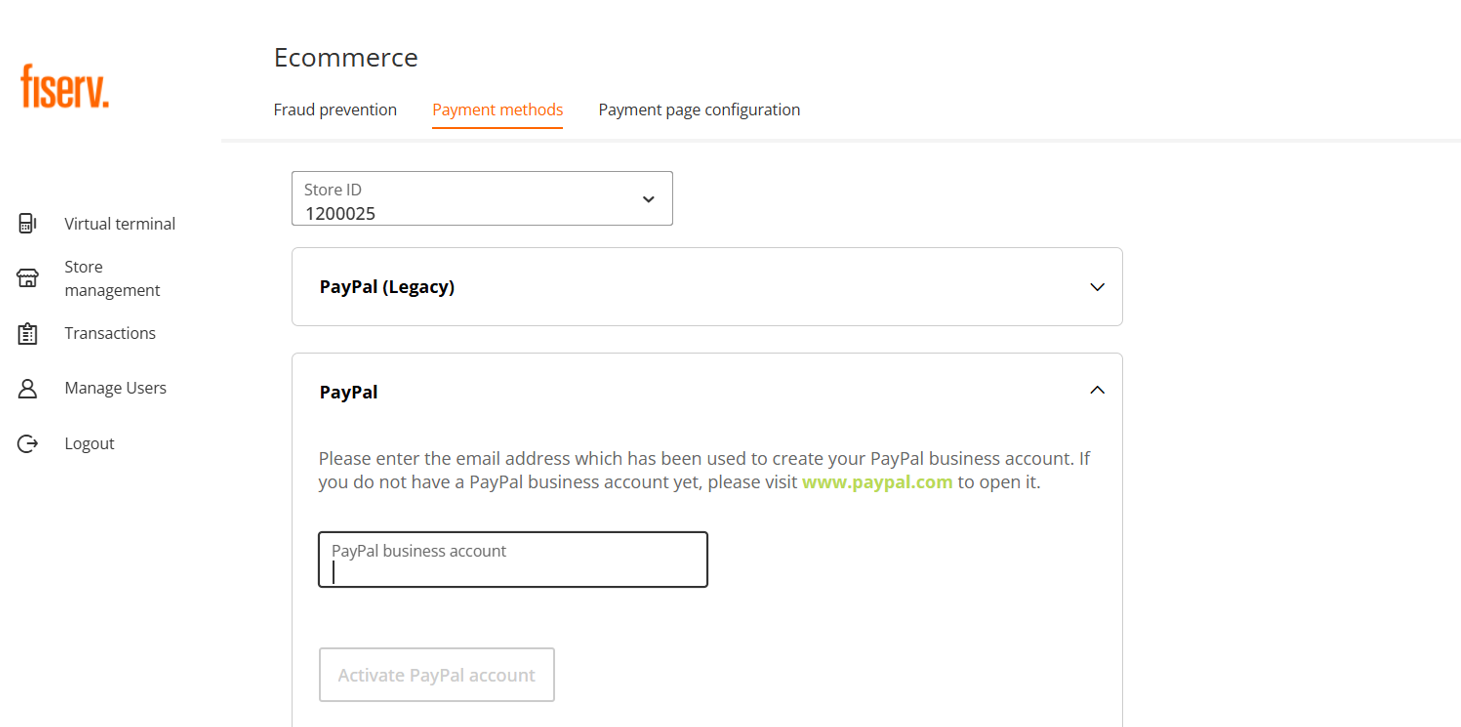
After you have logged into VT using the correct credentials and have the required permissions, you will be able to select the 'PayPal' option from the 'Payment methods' tab within 'Store management'.
Step 2
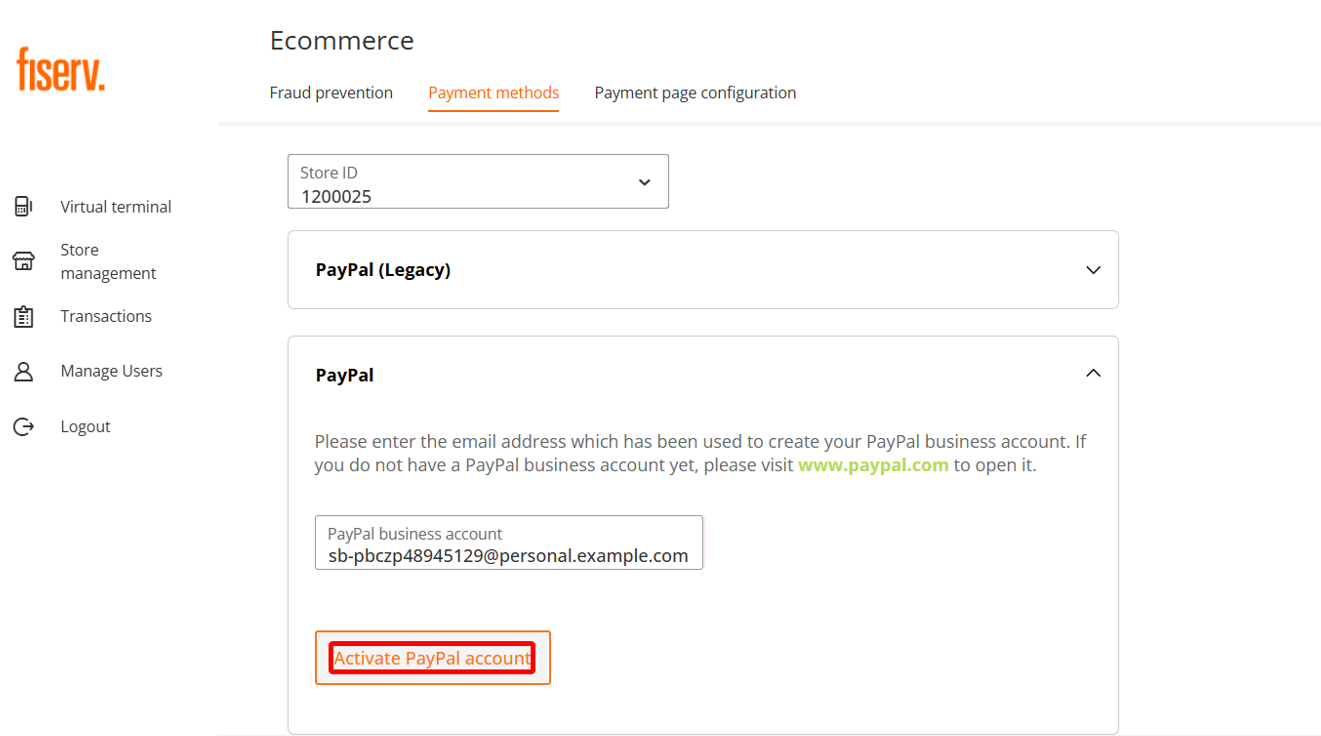
You will be redirected to a dedicated self-service page, where the PayPal initial onboarding process can be started (as part of the PayPal Integrated Sign Up flow) by entering an email of your existing PayPal Business Account or an email, which should be used to create a new PayPal Business Account on the PayPal side.
Enter your email address that is linked to your PayPal account into the 'PayPal business account' field. Once this was successfully validated by our application, the 'Activate PayPal account' button becomes active. Click this button to be redirected to PayPal.
Step 3
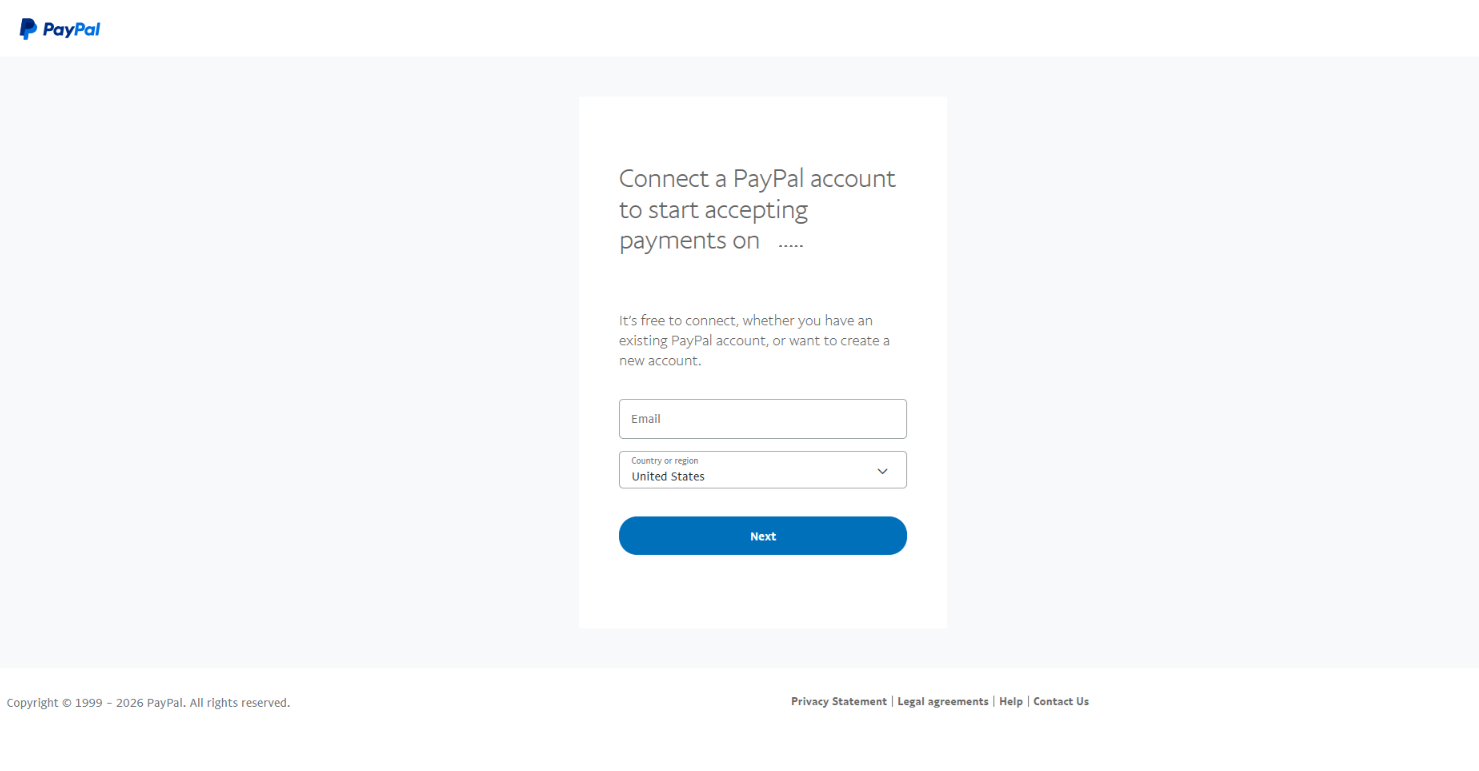
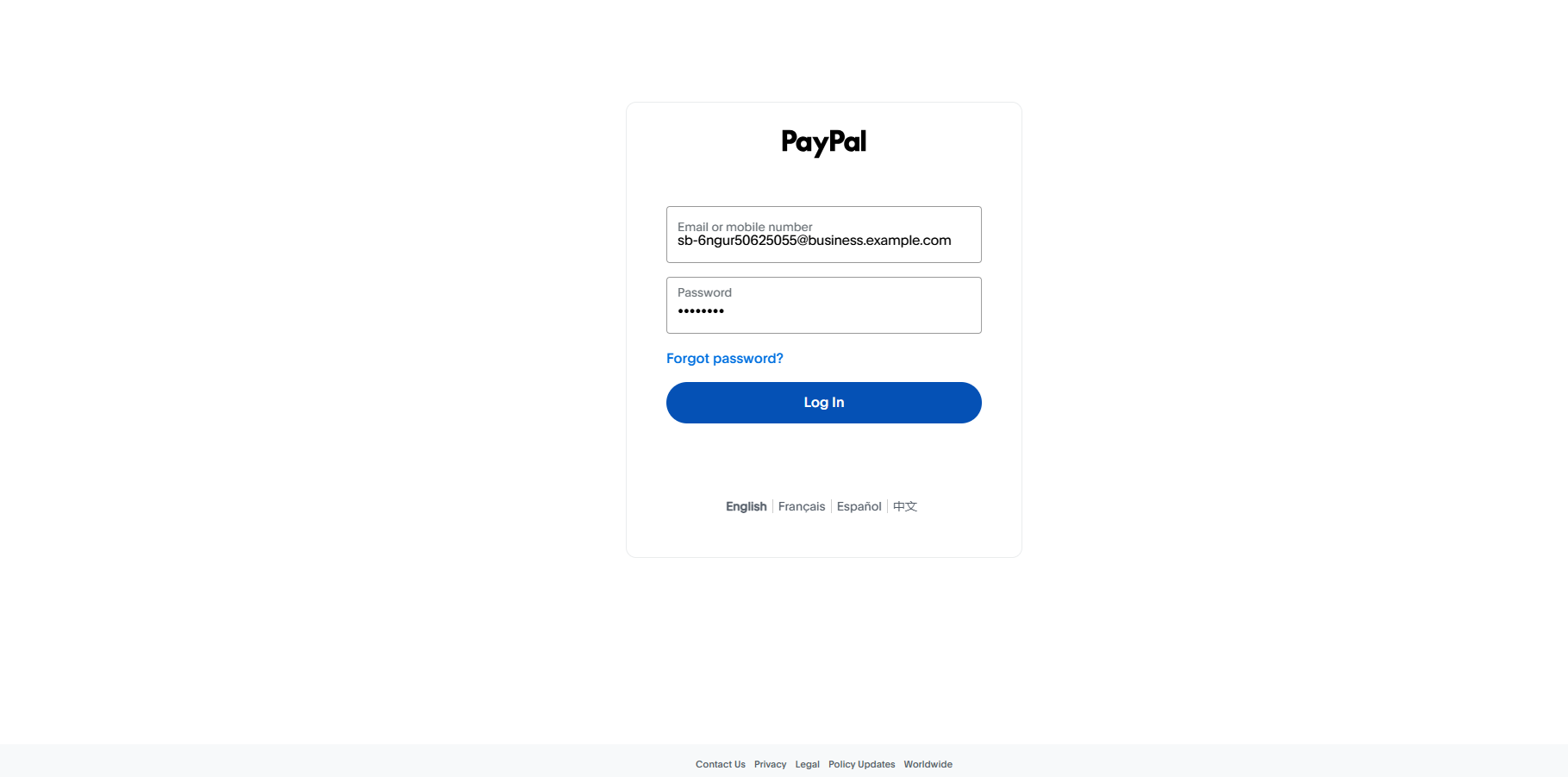
After the redirect to PayPal took place, you will need to login to your PayPal Business Account by using your credentials.
Step 4
Next, you can grant the required 3rd Party Permissions and finalize the onboarding process.
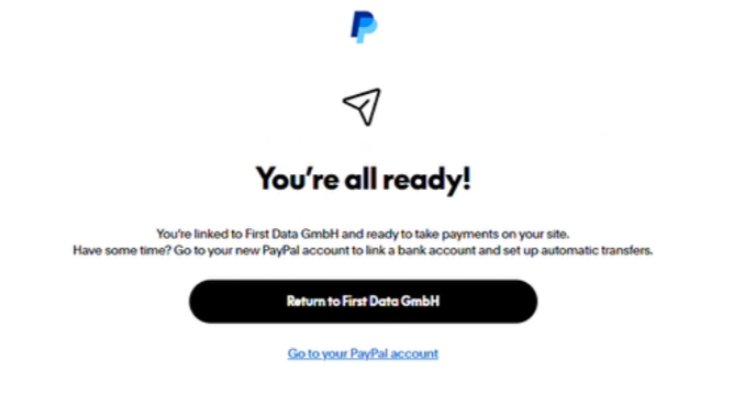
Once the onboarding process in PayPal is finalized, you will be redirected back to VT.
Status update
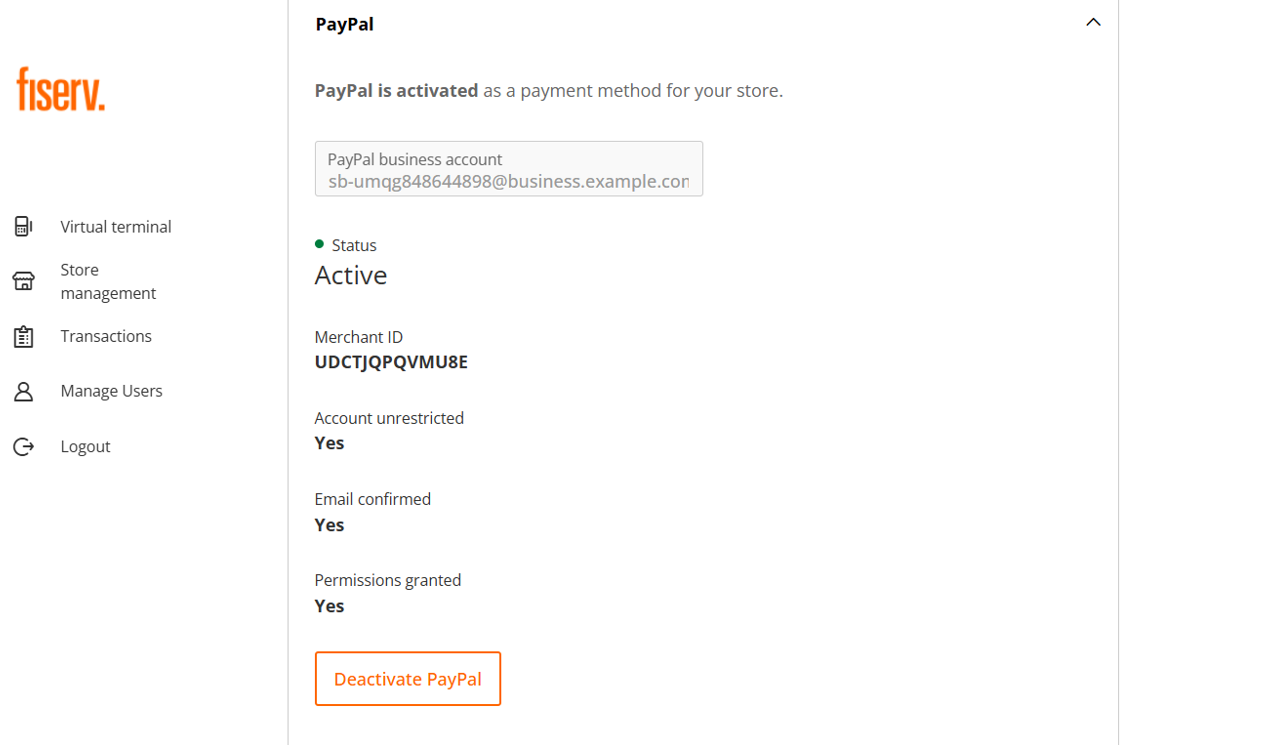
It can take up to 2 minutes for PayPal to provide the webhook with the boarding status (thus we cannot update the status immediately).
On the dedicated self-service page in VT, you will see that the overall onboarding status is set to "ACTIVE".
Technical limitation regarding deactivation / re-boarding
Due to a technical limitation, the onboarding status is only sent to our gateway once, immediately after the initial onboarding.
If you remove PayPal 2.0 from a store by clicking on the "Deactivate PayPal" button and later on try to re-board (repeat the onboarding), the system will not receive a new webhook from PayPal. As a result, your onboarding status will remain in ‘WAITING’ instead of ‘ACTIVE’
To resolve this, ensure you have stored your PayPal Business Account email and merchant ID after your initial successful onboarding. If you need to re-enable PayPal, contact the local support team and provide them with your PayPal business account email and merchant ID. They can manually enter these details into our configuration tool.If you deactivate PayPal as a payment method on your store by clicking on the "Deactivate PayPal" button. This action does not revoke the 3rd party permissions granted when onboarding to PayPal. Merchant can revoke these permissions only by accessing their PayPal Business Account (via Account Settings/Account access/Update API access/Manage API permission).
Updated 5 months ago
