
Transaction Reporting
Introduction
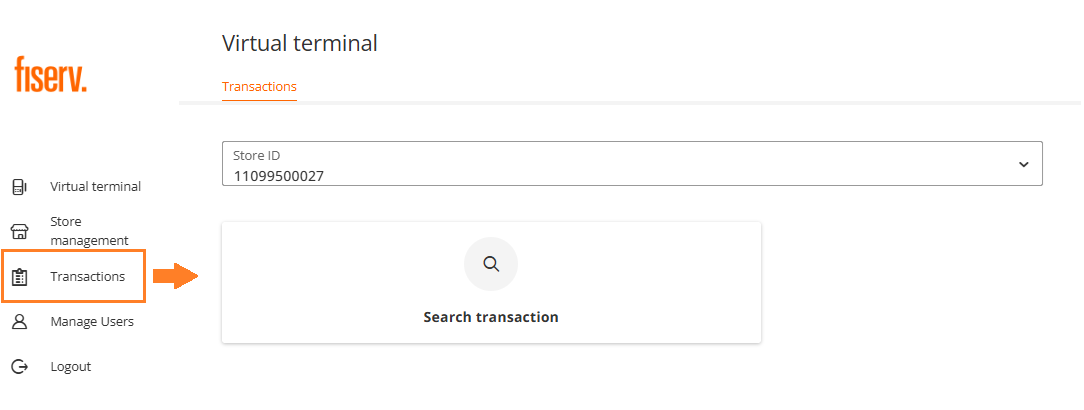
In case you need detailed overview of an individual transaction or looking for a particular detail, select "Transactions" from the main menu and click on "Search transaction".
Selection Criteria
The following parameters are available to perform the search:
- Order ID - generated by your system or the Gateway (search does not accept partial matches, the OID must be exact match)
- User ID - Virtual Terminal operator's user ID
- From date
- To date
- Transaction type
- Currency
- From amount
- To amount
- Transaction result
- Payment method - limited to credit and debit cards
- Last 4 digits - the last 4 digits of a credit/debit card PAN
- Invoice number
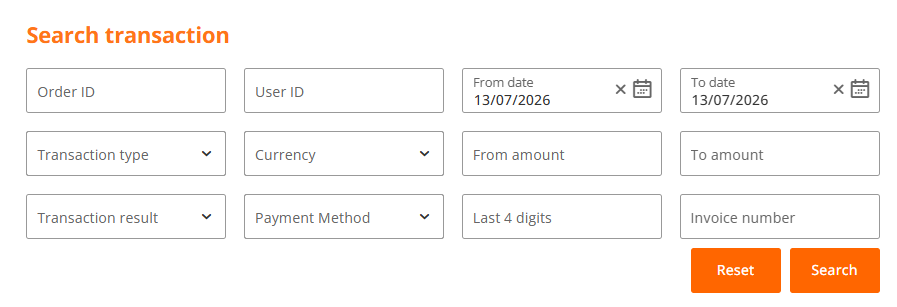
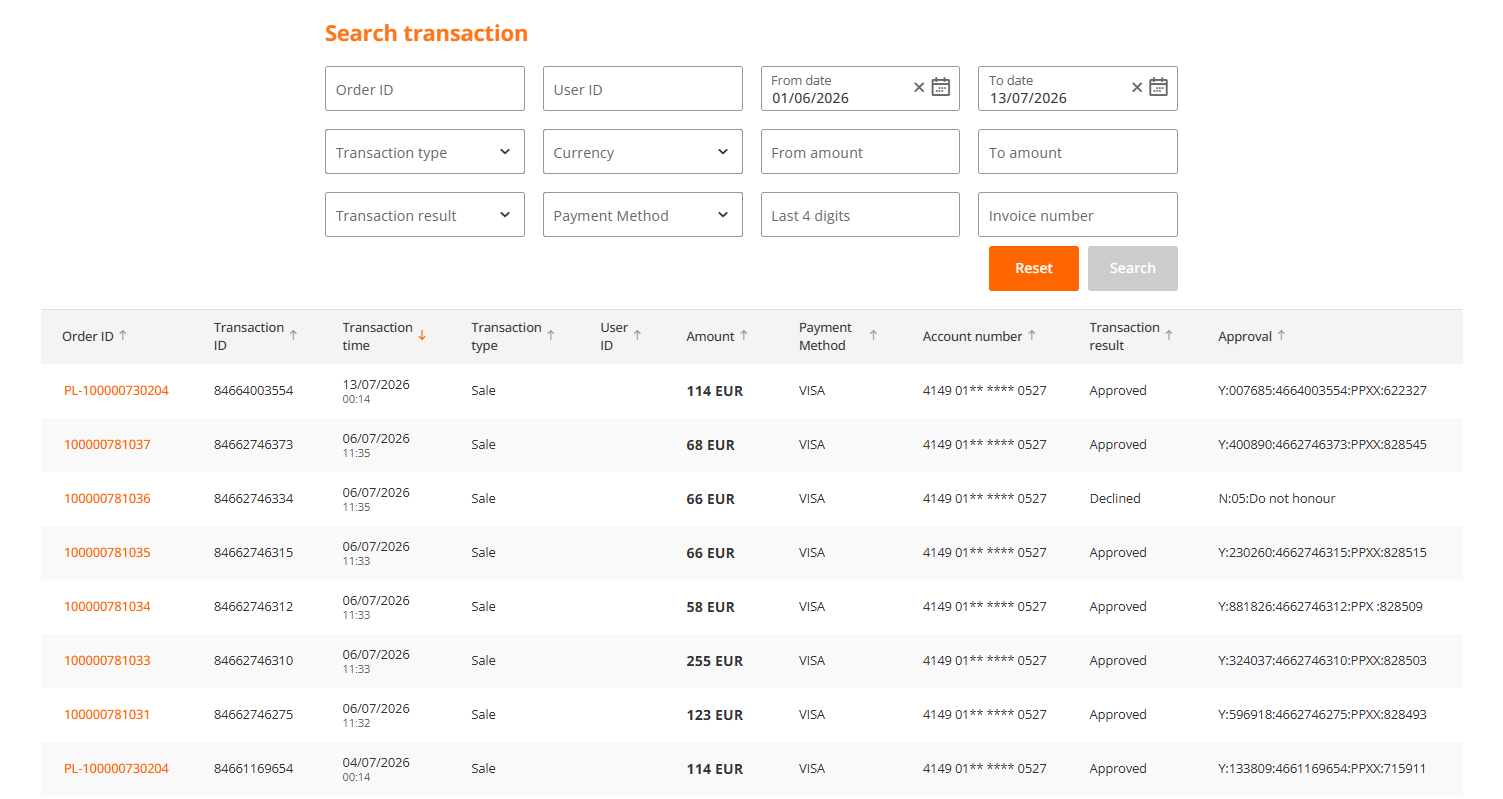
Once you entered your preferred parameter (or their combination) you will be provided with the list of results matching submitted parameters:
View Transaction Detail
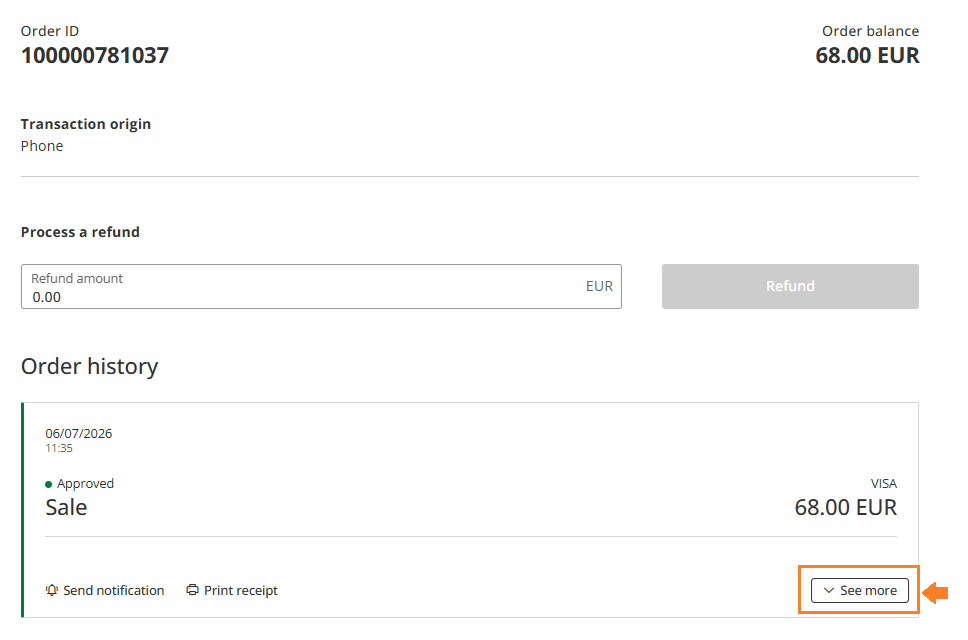
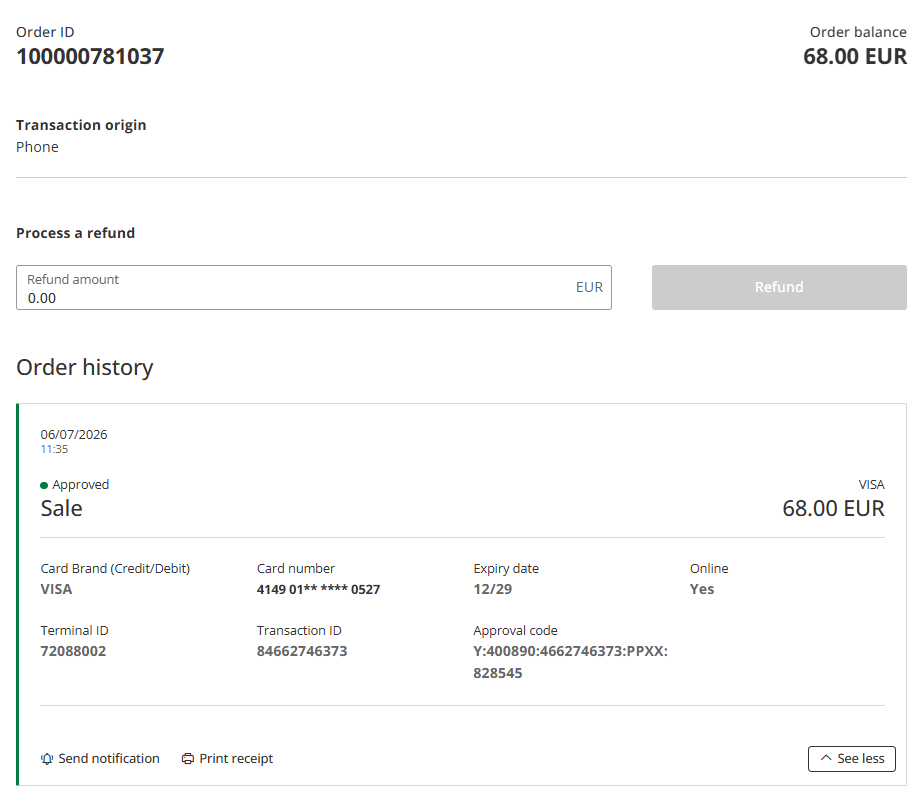
More transaction data could be found by clicking on Order ID link. The basic information is displayed, providing the options to perform a secondary transaction directly (e.g. Refund, Post-authorisation if applicable), send the email notification or print the receipt.
If you are interested in further transaction details, click on "See more" radio button.
Transaction Report Export
There is an option to download selected transaction to .csv (comma separated value) file by simply clicking on the "Export CSV" button.
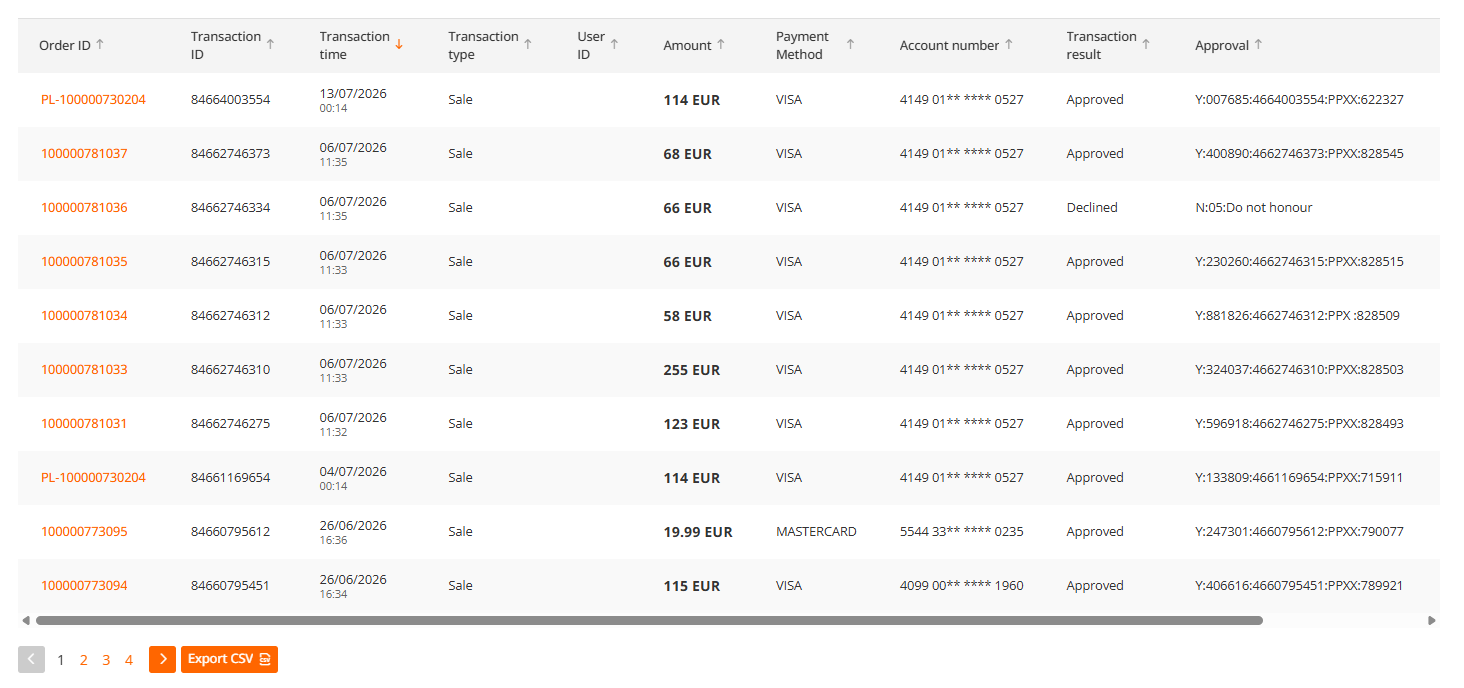
The report will appear in your "Downloads" folder providing the list of all listed transactions matching your selection criteria.
Note: The transaction history displayed is limited to the last two years in line with the data retention policy.
Updated 3 months ago
