
Introduction & Login
The new generation Virtual Terminal offers the possibility to safely process mail and telephone orders (MOTO) and utilise added value features while managing your transactions.
The Virtual Terminal is where you process payment (debit and credit) transactions via the Internet by turning any personal computer, tablet or smart phone into a Point of Sale (POS) terminal. By means, it can used directly through your Devices browser without any implementation.
The Virtual Terminal enables you to initiate sale, preauthorisation or completion transactions. Additionally, you can create a Payment URL (Pay by Link) which will allow your customers to make the payment at a later point.
Links
If you are using the new generation Virtual Terminal as a standalone solution (i.e. not embedded in our Merchant Portal), you can use below URLs:
| Environment | URL |
|---|---|
| CI (UAT) | https://test.ipg-online.com/virtual-terminal/ |
| PRODUCTION | https://www.ipg-online.com/virtual-terminal/ |
Multi-factor Authentication (MFA) Setup
Mobile Authenticator Setup
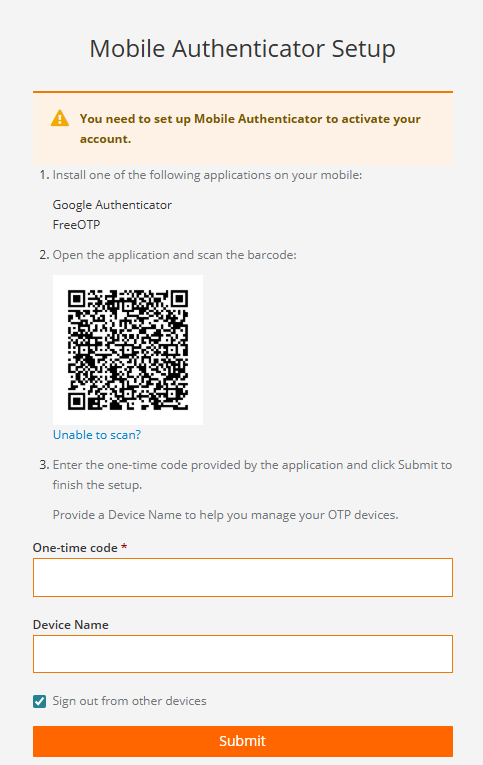
Before you proceed with your first login into the Virtual Terminal, it is necessary to install a mobile authenticator application on your mobile device (for Android and iOS devices), what will be used for a multi-factor authentication purpose and one-time-password (OTP) generation during login process.
Recommended authenticator apps include:
FreeOTP or any Time‑Based One‑Time Password (TOTP) application compliant with the following requirements:
Type: Time-based
Algorithm: SHA512
Digits: 6
Interval: 30
Examples: Sophos Authenticator, IBM Verify (iOS), Aegis Authenticator (Android), jaden/totp-generator (web-based)
After you successfully installed authenticator app on your mobile device and obtained your VT account credentials, enter Virtual Terminal URL in your browser so that a login screen is displayed:
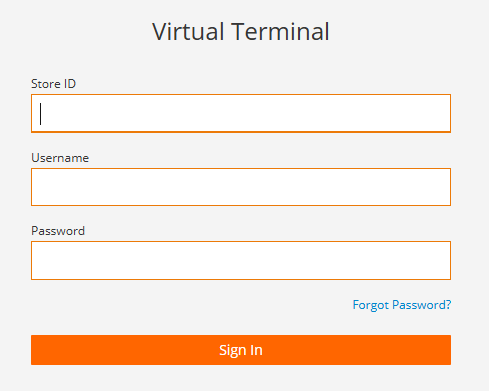
Type in your credentials and initial password provided by your support team and click on "Sign In" button.
Follow the instructions as on the picture below and enable your account for multi-factor authentication, then click on "Submit" button.
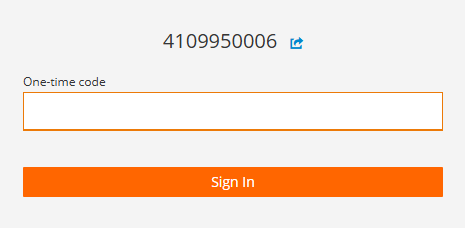
One Time Password (OTP) Entry
The setup screen will be shown only during the first login attempt, after your setup was completed successfully, you will be prompted to enter OTP generated through the authentication app on your mobile device.
Browser Authenticator Setup
For cases, where you are unable to use a mobile device for MFA, you may also use a browser-based TOTP generator, e.g. https://2fa.chatgpt.org.uk/totp-generator
Please ensure, that the setup matches matches the following requirements:
Type: Time-based
Algorithm: SHA512
Digits: 6
Interval: 30
You initiate the MFA registration with clicking on "Unable to scan?" link, and you will be provided with the key to be copied into the browser-based OTP generator.
Please, save the key for the future use, as you will be prompted to enter it with every new login.
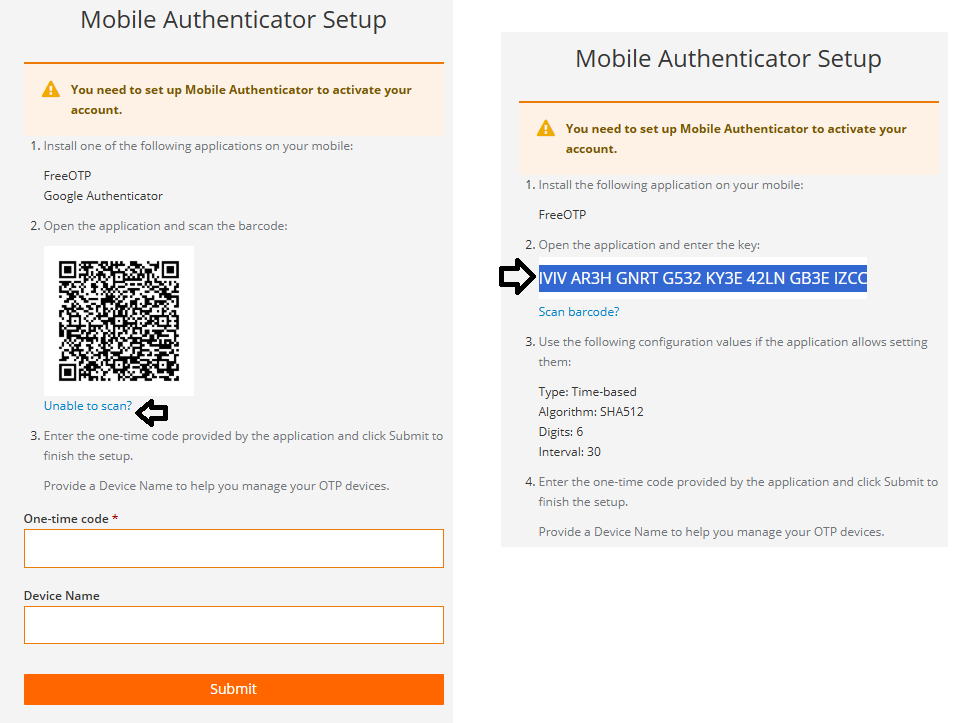
Copy the key into the OTP generator after you used the recommended TOTP options setup, like on the example below:
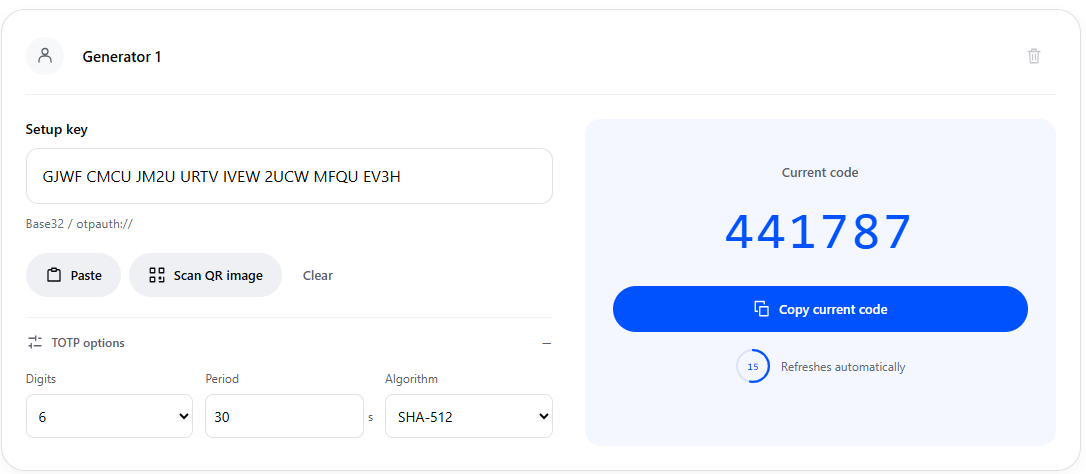
After you copied the OTP from the browser, navigate to your Virtual Terminal login screen (first or repeated login) and paste the generated code within the 30 seconds time-frame.
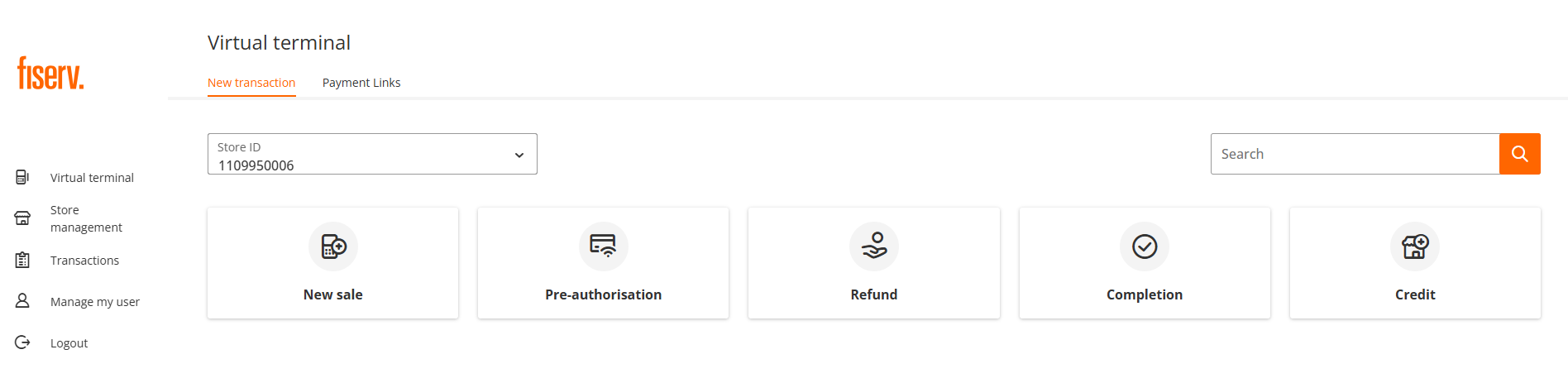
After the login was successful, you will be presented with the main screen with menu:
Authenticator App Overview
The following table provides you with an overview of the common authenticator apps and their availability in dedicated operation systems:
| Authenticator App | Windows | Mac | Android | iOS |
|---|---|---|---|---|
| Proton Pass / Authenticator | ✅ | ✅ | ✅ | ✅ |
| Aegis Authenticator | ❌ | ❌ | ✅ | ❌ |
| Free OTP / Free OTP+ | ❌ | ❌ | ✅ | ✅ |
| KeePassXC | ✅ | ❌ | ❌ | ❌ |
Localisations
Virtual Terminal is available in the following languages:
| Language | Country of Origin |
|---|---|
| Arabic | United Arab Emirates |
| Dutch | Netherlands |
| English | United Kingdom, Mauritius, Macao |
| French | France |
| German | Germany |
| Italian | Italy |
| Polish | Poland |
| Portuguese | Brazil |
| Serbian | Serbia |
| Slovak | Slovakia |
| Slovenian | Slovenia |
| Spanish | Bermuda, Colombia, Dominican Republic, Mexico, Panama, Spain |
Devices and Web browsers
| Device | OS | Browser |
|---|---|---|
| Desktop | Windows, iOS | Chrome, Safari, Edge, Firefox, Opera |
| Tablet | Windows, iOS, Android | Chrome, Safari, Android, Opera |
| Mobile | iOS, Android | Chrome, Safari |
Transaction types
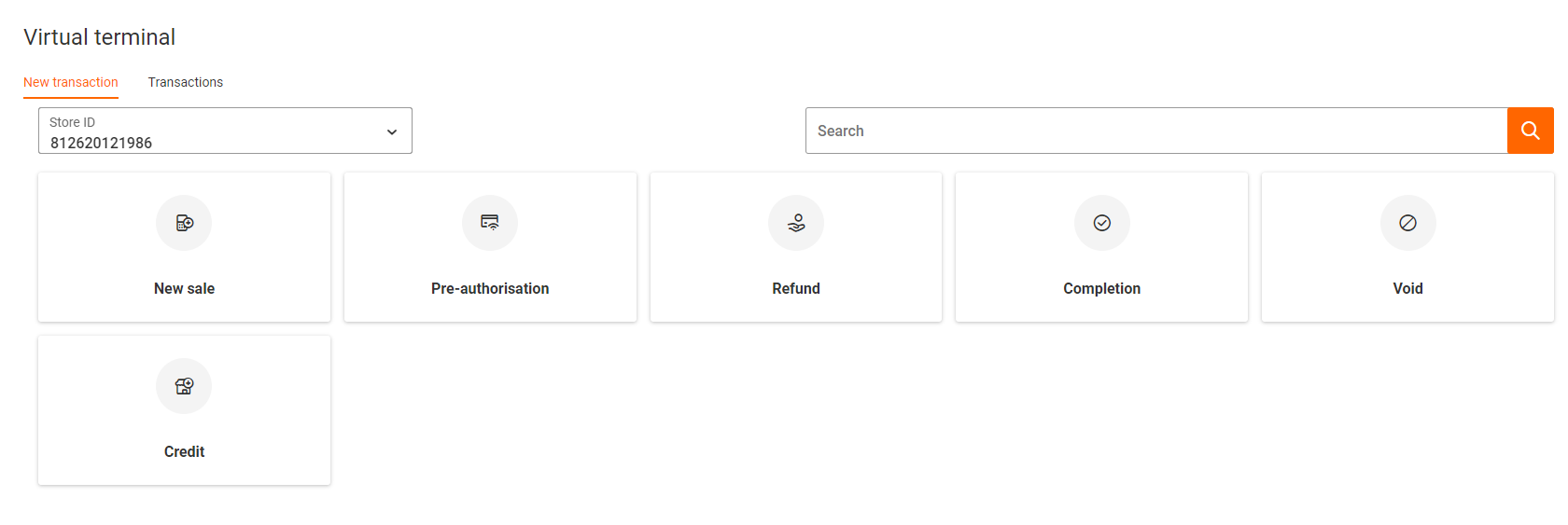
The availability of the various transaction types depends in the permissions granted to an individual user.
Where the required permissions are assigned to the user, these transaction types are available as 'tiles' from the main Virtual Terminal menu:
Updated about 2 months ago
