
User Management
Create a New User
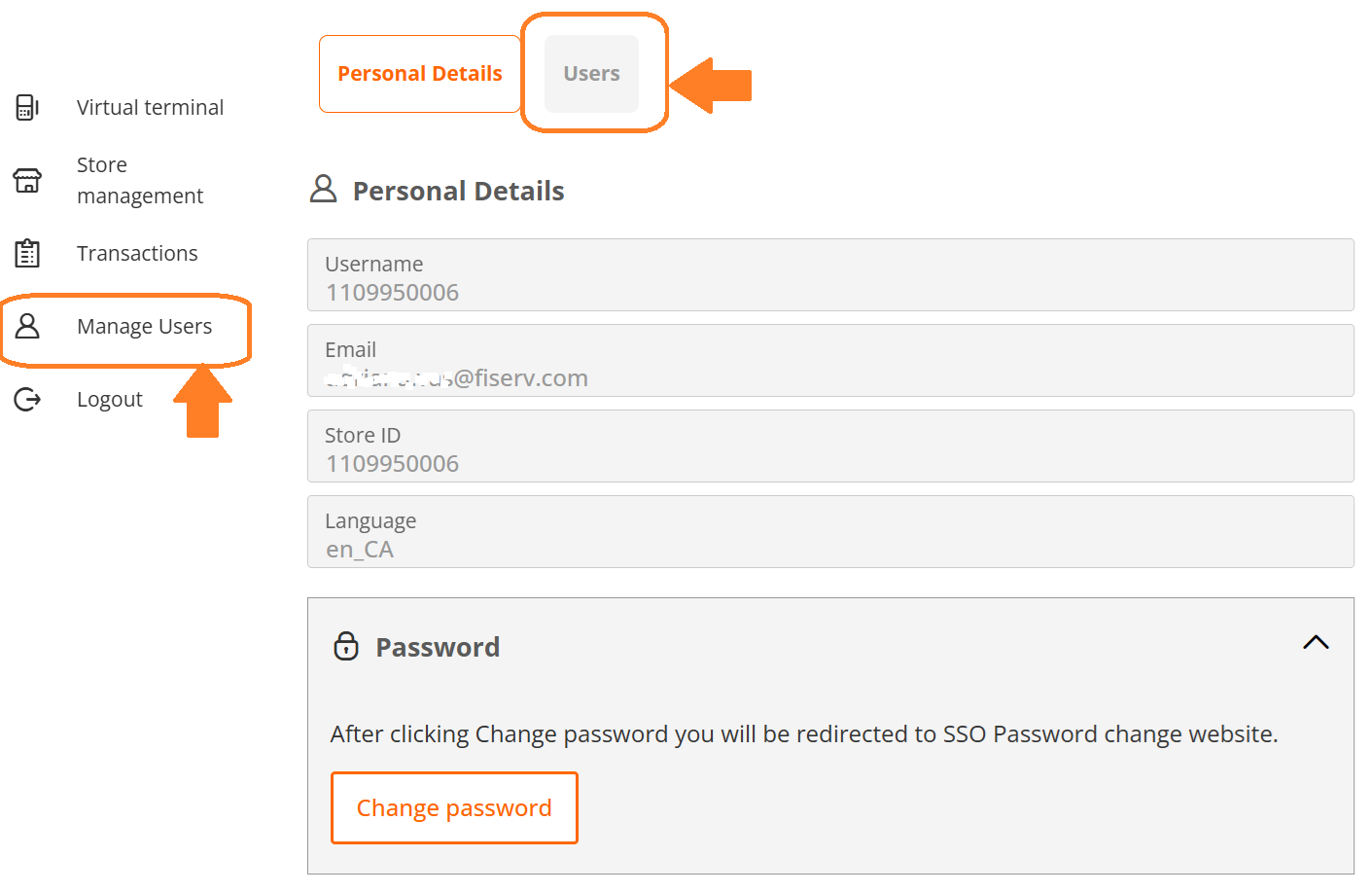
For creating a new sub-user for your Virtual Terminal account, you log into your store as usual, select "Manage Users" option from the menu and click on "Users" button.
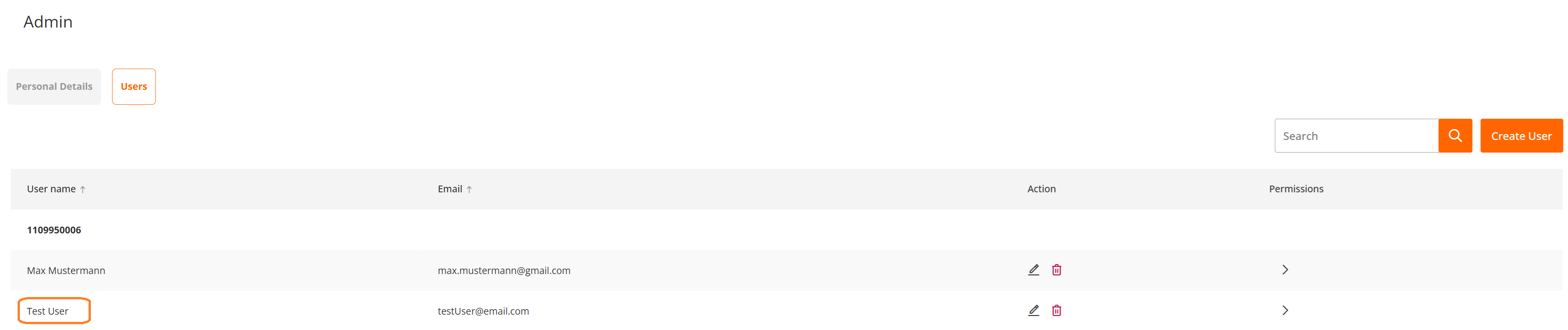
You will be provided with the list of all currently assigned users, with Admin User details displayed as the first line.

By clicking on "Create User" button you are able to define new User(s) and define permissions allowing them to access different level of Virtual Terminal capabilities. Initial setup can be changed at any time by Admin VT User.
After you fill out user details and initial login password, you must define what Virtual Terminal functionalities you want to assign to the new user.
Virtual terminal option allows you to define permissions enabling the user to initiate different types of transactions or access to Reports/Transaction management.
Once you are satisfied with the setup, confirm your choices by clicking on "Save" button. You will be redirected to the list, where you can find newly created user.
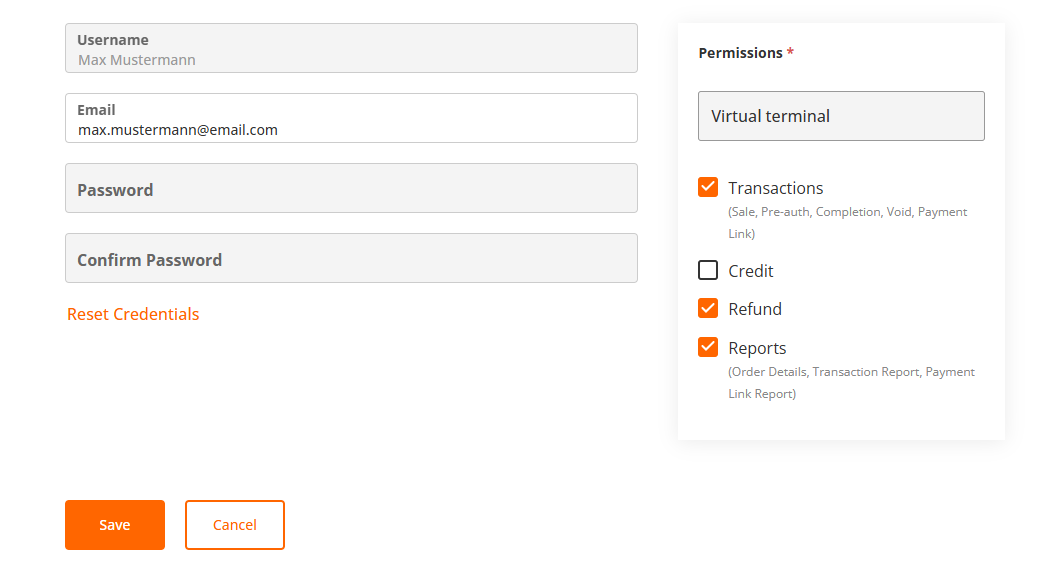
Permissions can be changed at any time through "Edit permissions" function.
Edit User
User's details and permissions can be changed by using a pencil icon placed in "Action" column on the user list.

Information provided during User setup is displayed through Edit screen, enabling VT Admin User to reset password or change permission for their sub-users. After you performed changes, you click on "Save" button again.
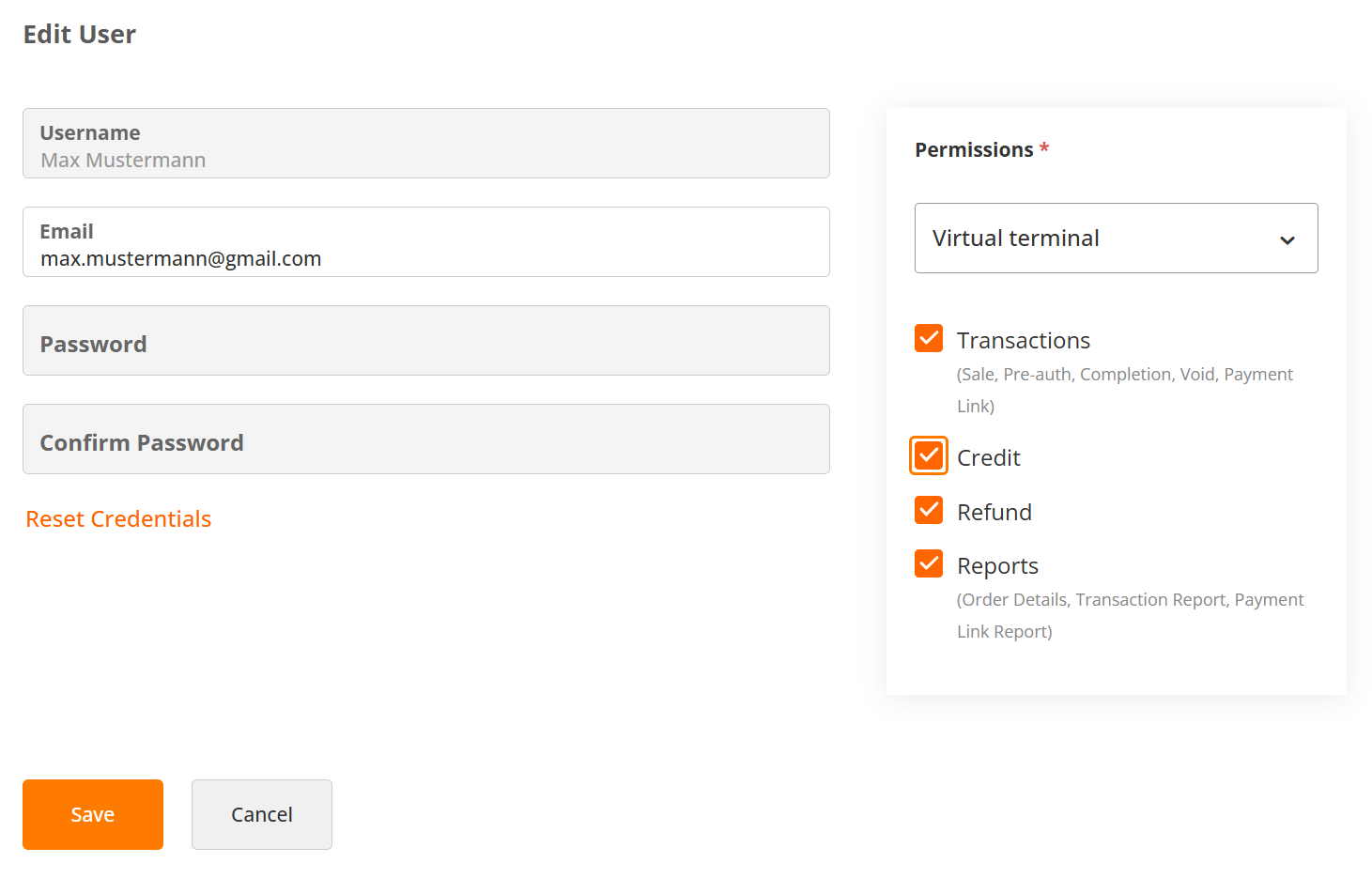
For cases where the sub-user(s) locked themselves out, Admin VT User has the option to reset their password through Edit User function by simply clicking on "Reset Credentials" link and supply a new password for the sub-user.
Delete User
For cases when you need to delete sub-user completely, click on a bin icon next to the user name you wish to delete.
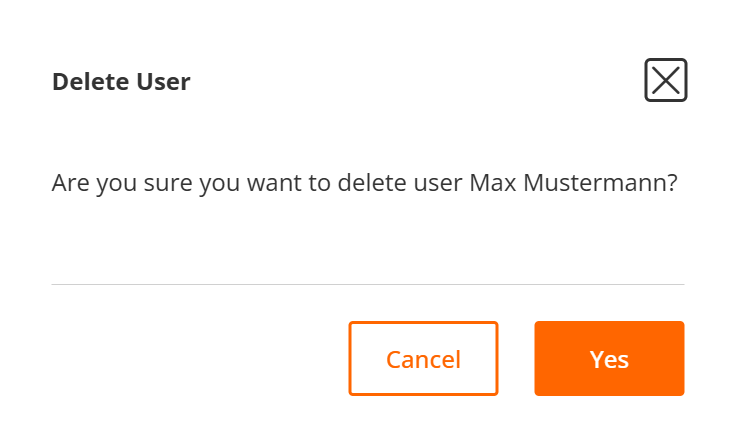
You will be prompted to confirm your choice by clicking on "Yes" button on the confirmation pop-up screen.
Updated 8 months ago
