
Recurring Payments (Scheduler)
Introduction
Recurring payments can either be triggered by your system every time a payment is due using our APIs or you can make use of our scheduler that allows you to define the frequency and period (e.g. every three days, every second week, every month, once a year, etc.)
You can create a recurring schedule using Virtual Terminal, where all subsequent transactions are initiated automatically by the Gateway on your behalf and are processed without cardholder's presence.
Note, that due to PSD2 and Strong Customer Authentication (SCA) requirements, you are obliged to obtain the end consumer's consent to process recurring transaction from their credit cards' directly or ensure that the first transaction has been fully authenticated using 3-D Secure rails.
Create Recurring Schedule
You can create a new recurring schedule while initiating a sale transaction (see the section Sale for further information).
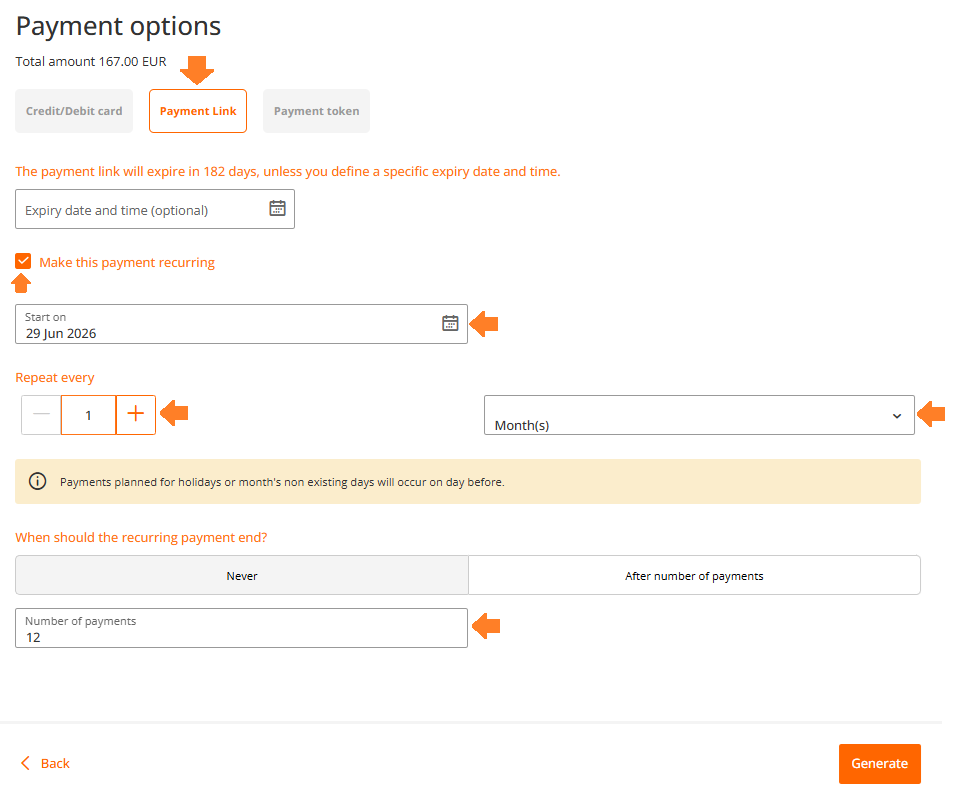
After you entered the transaction and customer details, please use Payment Link option to set up the schedule by selecting start date, frequency and end date (if applicable), so that SCA of the cardholder can take place.
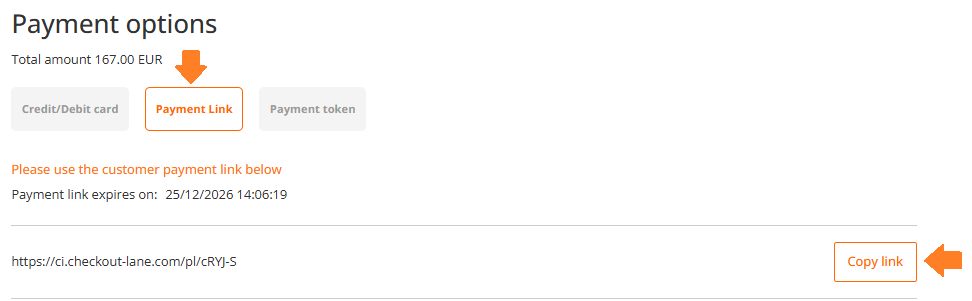
Copy generated payment link and send it to the end-consumer for payment.
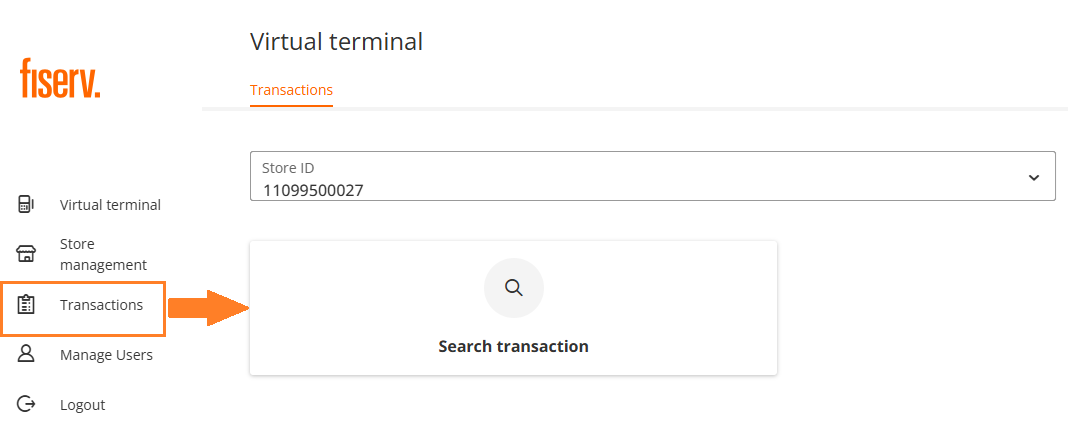
After the cardholder's authentication, the transaction is approved and you are able to localise it using "Transaction" search.
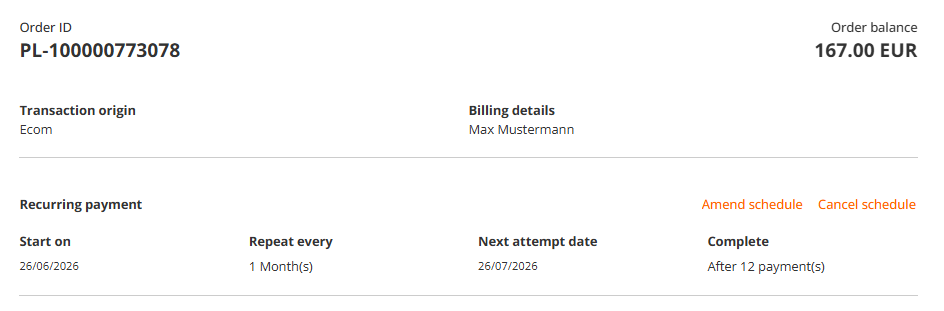
In the transaction details you will find the information about recurring schedule, its details and the options to modify the schedule or cancel it.
Modify Recurring Schedule
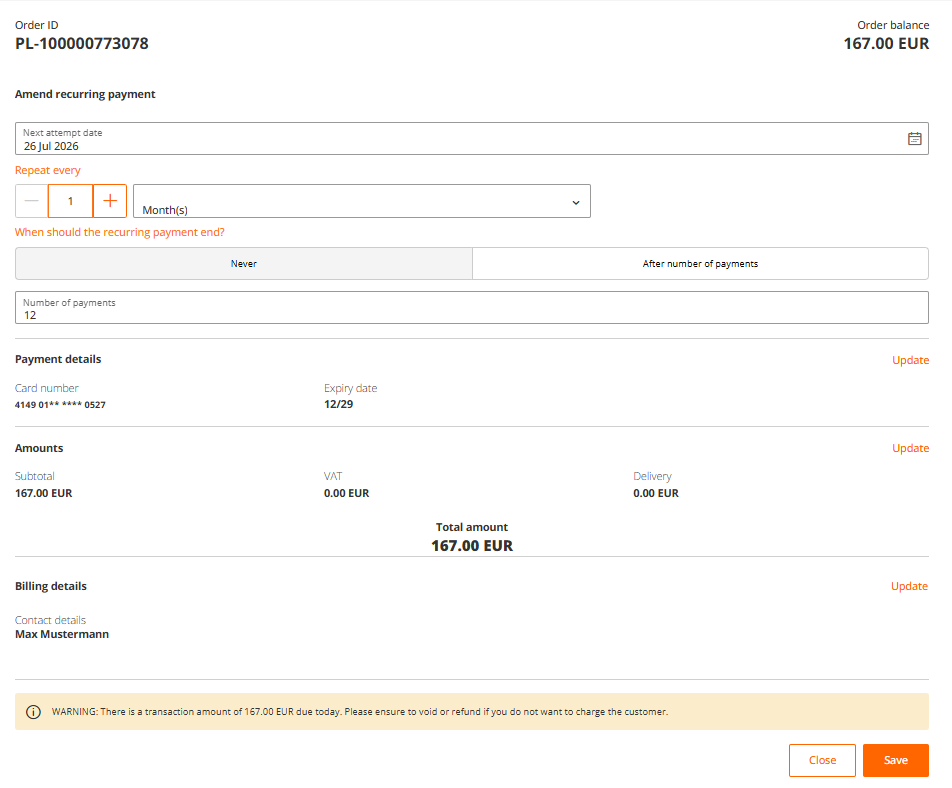
In case you require to change the frequency, update credit card number for future payments or change transaction details, please click on "Amend schedule" button located above recurring payment details.
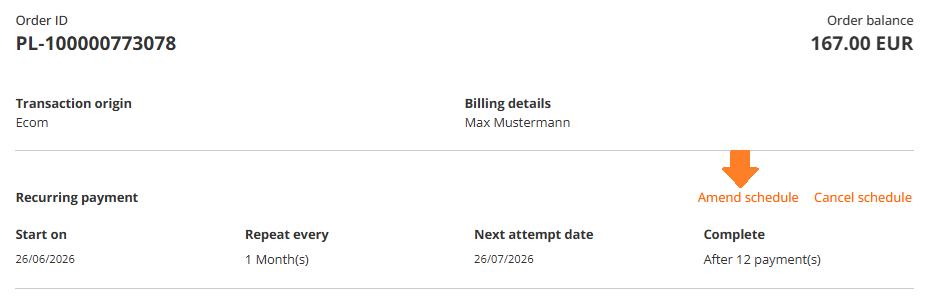
It is possible to modify the following parameters:
- recurring frequency
- payment details / credit card number
- transaction amount
- billing information
Cancel Recurring Schedule
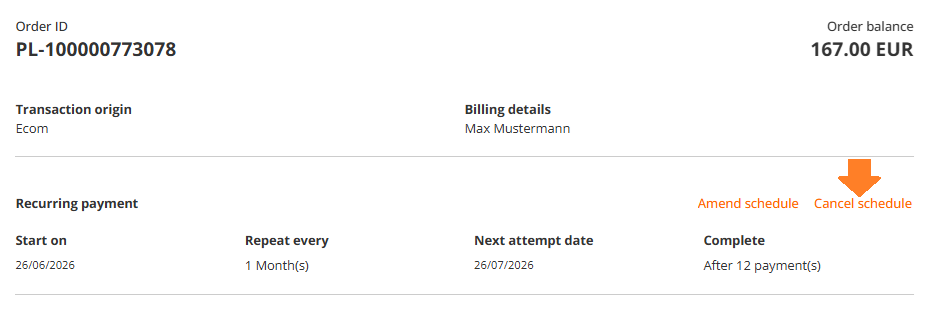
In case you need to cancel the schedule, please click on "Cancel schedule" button located above recurring payment details.
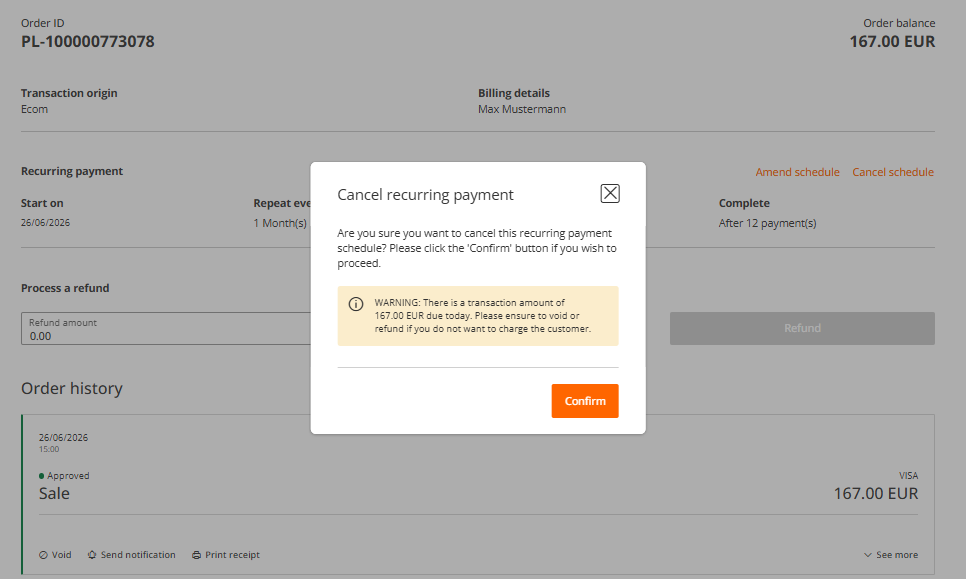
You will be presented with a confirmation screen, you can click on "Confirm" button if you wish to proceed with a schedule cancellation.
Updated 3 months ago
